Google has added some accessibility features to Google Apps. Check out more information on the official Google blog at this link: Google Official Blog
There's a good rundown of the new features on their official Google Group at this link: Google Groups
Some of the improvements they've added include Optical Character Recognition for PDFs and images (allowing screen readers to read them), custom colors for Google Calendar, improved keyboard accessibility, and button consistency.

Showing posts with label screen readers. Show all posts
Showing posts with label screen readers. Show all posts
Wednesday, September 19, 2012

Wednesday, September 12, 2012
How to Add Alt Text to Images in Blogger
Click on any of the images in this post to view them at original size.
The "alt" tag in HTML refers to the "alternate text" for an image, used in case the image cannot be displayed. The image below contains alt text.

In order to view alt text in a normal browser, such as Firefox, Internet Explorer or Google Chrome, you can typically either hover over it or right-click to see the properties of the image. (In Firefox, the alt text on an image will show up under "View Image Info."
For someone using a screen reader, which is a software program that reads webpages aloud to someone with sight difficulties, the alt text of an image will be read. If there is no alt text the image will be skipped.
In order to add alt text to an image in Blogger, first add your image to your blog post as normal, or edit a post containing images. Next, click on the image while you are in the editing screen. You will see several options pop up under your cursor.

While it may appear that you should click "Caption," you should actually click "Properties." Clicking "Caption" will allow you to add text visible under the image, and while this would be read by a screen reader, it might not be clear that the caption belongs to an image.
Clicking "Properties," you will see this dialog box:

I would suggest typing the same text into both boxes so that your description can serve as both the title text of the image and the alt text. Then click "OK" and you are finished.
You can also edit the alt text by going into Blogger's HTML editing mode. Inside of the image tag, add "alt=your text here," like so:
The American Foundation for the Blind has several suggestions on their website for how to write effective alt text.
Alt text will also show up when using Pinterest to pin from websites, which makes it doubly useful.
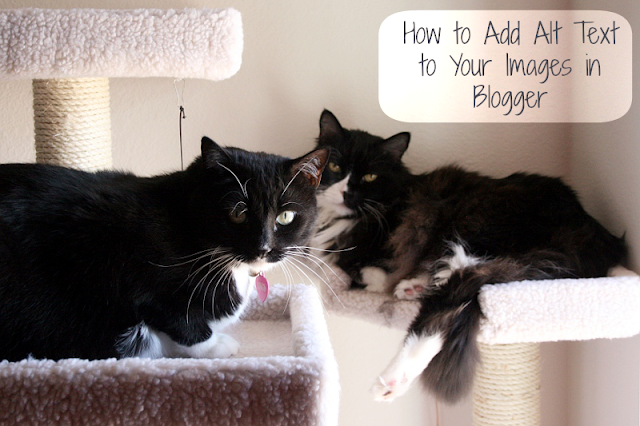
The "alt" tag in HTML refers to the "alternate text" for an image, used in case the image cannot be displayed. The image below contains alt text.

In order to view alt text in a normal browser, such as Firefox, Internet Explorer or Google Chrome, you can typically either hover over it or right-click to see the properties of the image. (In Firefox, the alt text on an image will show up under "View Image Info."
For someone using a screen reader, which is a software program that reads webpages aloud to someone with sight difficulties, the alt text of an image will be read. If there is no alt text the image will be skipped.
In order to add alt text to an image in Blogger, first add your image to your blog post as normal, or edit a post containing images. Next, click on the image while you are in the editing screen. You will see several options pop up under your cursor.
While it may appear that you should click "Caption," you should actually click "Properties." Clicking "Caption" will allow you to add text visible under the image, and while this would be read by a screen reader, it might not be clear that the caption belongs to an image.
Clicking "Properties," you will see this dialog box:
I would suggest typing the same text into both boxes so that your description can serve as both the title text of the image and the alt text. Then click "OK" and you are finished.
You can also edit the alt text by going into Blogger's HTML editing mode. Inside of the image tag, add "alt=your text here," like so:
<img src="mycats.png" alt="My cats, Isis and Sneakers">The Blogger-generated code may look more complicated than this, but that's all there is to it.
The American Foundation for the Blind has several suggestions on their website for how to write effective alt text.
Alt text will also show up when using Pinterest to pin from websites, which makes it doubly useful.

Subscribe to:
Posts (Atom)